
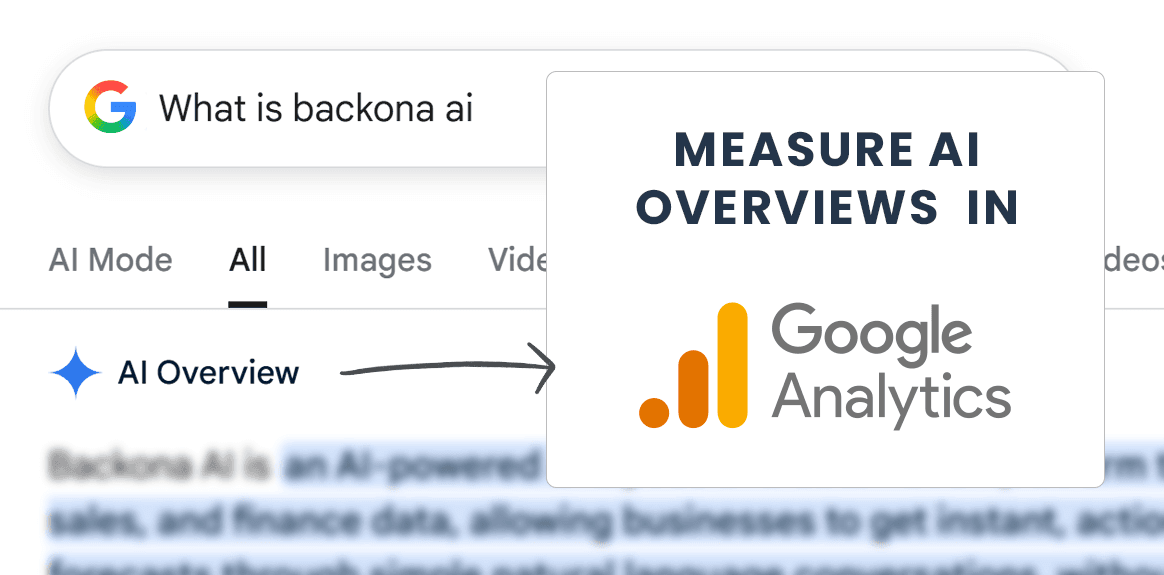
Tracking Google AI Overviews in Google Analytics
A beginner-friendly, step-by-step guide (no technical knowledge needed)
What is this guide about?
This guide shows you how to set up Google Analytics to track Google AI Overviews.
By the end of this article, you will:
- Know when Google AI uses your website content
- See which exact text Google AI copies
- Track this data inside Google Analytics 4 (GA4)
- Understand when your content appears in AI-generated summaries
- Understand why this matters for SEO
Tracking this data helps you measure your search performance, giving you insights into how AI-generated summaries impact your content's visibility and organic search results.
You don’t need to be a developer. You don’t need paid tools. You just follow simple steps.
What are Google AI Overviews? (Very simple)
Google AI Overviews, also known as AI-generated summaries, are the AI answers that appear at the top of the search engine results page in Google search results.
Instead of only showing blue links, Google:
- Reads many websites
- Picks the best information
- Shows a short AI-generated answer
Sometimes Google copies a sentence from your website and highlights it.
When this happens:
- Your site is helping Google’s AI
- Users can click through to your page
- But Google does not clearly report this in Analytics
That’s the problem we are solving.
Important note: This method tracks Text Fragments (#:~:text=). While this is the primary way AI Overviews link to content, this signal is also used for standard Featured Snippets. Either way, it means Google finds your content highly relevant.
Why tracking Google AI Overviews is important
Right now, Google Analytics does not automatically say:
- “This visit came from an AI Overview”
- “This text was quoted by Google AI”
Without tracking:
- AI traffic looks like normal organic traffic
- You don’t know which content AI prefers
- You can’t optimise for AI visibility
Tracking fixes this.
How Google shows AI-copied text (easy explanation)
When Google highlights text, it uses something called a text fragment.
You might see a strange part at the end of a URL like this: #:~:text=best%20seo%20tools.
This means:
- Google selected a specific sentence (the snippet text)
- The link points to the exact URL and text Google highlights in AI Overviews
- The user is sent directly to that part of the page
This is the key signal we track.
What you need before you start
You only need three simple things:
- Google Analytics 4 (GA4) installed
- Google Tag Manager (GTM) access
- The custom JavaScript tracking script (provided below)
No coding skills required.
What this setup will track for you
After setup, your analytics will capture:
- The exact text Google highlighted
- The URL source (referrer)
- The length of the highlighted text
This turns AI activity into real data you can analyse.
Part 1: The tracking script (copy & paste)
This script listens for Google AI text fragments and sends them to the data layer.
Instructions:
- Go to Google Tag Manager
- Create a new Tag
- Choose Custom HTML
- Paste the JavaScript code below (Google Tag Manager will wrap it in a
<script>tag for you) - Set the trigger to All Pages
!function(){try{var r,e,n=function(n){try{return decodeURIComponent((n||"").replace(/\+/g,"%20"))}catch(r){return n}},t=window.performance&&window.performance.getEntriesByType?window.performance.getEntriesByType("navigation")[0]:null,a=t&&t.name?t.name:window.location&&window.location.href?window.location.href:"",i=document.referrer||"";if(a&&-1!==a.indexOf(":~:")){for(var o=a.split(":~:")[1].split("&"),c={t:[],s:null,e:null,p:null,su:null},u=0;u<o.length;u++){var l=o[u],f=l.indexOf("=");if(f>-1){var s=l.slice(0,f),h=n(l.slice(f+1));"text"===s?c.t.push(h):"textStart"===s?c.s=h:"textEnd"===s?c.e=h:"prefix"===s?c.p=h:"suffix"===s?c.su=h}}var p=c.t.join(" | ");!p&&(c.s||c.e)&&(r=[],c.s&&r.push(c.s),c.e&&r.push(c.e),p=r.join(" → ")),!p&&(c.p||c.su)&&(e=[],c.p&&e.push("…"+c.p),c.su&&e.push(c.su+"…"),p=e.join(" | ")),p&&(p=p.replace(/\s+/g," ").trim(),p.length>100&&(p=p.slice(0,100)),window.dataLayer=window.dataLayer||[],window.dataLayer.push({event:"url_fragment_text",hit:{url_fragment_text:p,url_fragment_source:i,action_value:p.length},_clear:!0}))}}catch(n){}}();
Part 2: Sending data to Google Analytics (crucial step)
The script above puts the data into the data layer. Google Tag Manager then reads this data and sends it to GA4.
Step 1: Create variables
Go to Variables → New → Data Layer Variable and create the following:
Variable 1
- Name:
dlv - url_fragment_text - Data Layer Variable Name:
hit.url_fragment_text
Variable 2
- Name:
dlv - url_fragment_source - Data Layer Variable Name:
hit.url_fragment_source
Variable 3
- Name:
dlv - action_value - Data Layer Variable Name:
hit.action_value
Step 2: Create a trigger
Go to Triggers → New → Custom Event:
- Event Name:
url_fragment_text - Trigger Name:
Event - URL Fragment
Step 3: Create the GA4 event tag
Go to Tags → New → Google Analytics: GA4 Event:
- Measurement ID: Your GA4 ID
- Event Name:
url_fragment_text
Event parameters:
fragment_text→{{dlv - url_fragment_text}}fragment_source→{{dlv - url_fragment_source}}action_value→{{dlv - action_value}}
Trigger: Event - URL Fragment
Publish your container. You’re done.
Configure custom dimensions in GA4 (important)
To make these values usable in reports and external tools (for example BackonaAI), you must register them as custom dimensions in GA4.
Go to GA4 → Admin → Custom definitions → Create custom dimension and add:
- Dimension name:
fragment_text- Scope: Event
- Event parameter:
fragment_text
- Dimension name:
fragment_source- Scope: Event
- Event parameter:
fragment_source
- Dimension name:
action_value- Scope: Event
- Event parameter:
action_value
Without this step, GA4 will collect the data but reporting tools will not be able to read it.
What you will see in Google Analytics
Once active, you will see a new event called url_fragment_text.
Inside that event:
fragment_text– the exact sentence Google highlightedfragment_source– the URL the user came from (e.g. Google Search)action_value– the character length of the highlighted text
You can:
- Build reports to identify pages used by AI Overviews
- Compare content formats Google prefers
- Measure AI visibility growth over time
Visualizing the data
Seeing AI traffic visually makes trends much easier to spot.
With Google Analytics and Looker Studio, you can:
- Identify pages attracting AI traffic
- See traffic sources clearly
- Understand how users behave after clicking AI results
Why this is powerful for beginner SEO users
Even if you are new to SEO, this gives you:
- Clear proof your content is useful
- Insight into what Google AI prefers
- Direction on what content to improve
- A head start on AI-first search
Is this safe and allowed?
Yes.
- Uses normal browser data
- No personal data
- No scraping
- No Google policy violations
This works the same way as standard analytics tracking.
Final takeaway
Google Search is changing fast. SEO is no longer only about rankings — it’s about being used by AI.
Tracking Google AI Overviews in Google Analytics lets you:
- See AI visibility clearly
- Understand AI behaviour
- Optimise content with confidence
If you can measure it, you can improve it.